
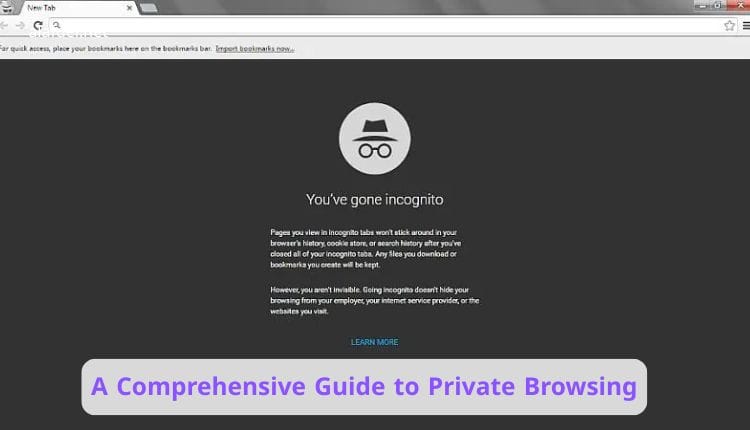
In today’s digital age, online privacy is more important than ever. With widespread tracking by advertisers, websites, and even ISPs, many users turn to private browsing modes—also known as incognito mode—to safeguard their activities.
This feature, available in most major browsers, creates a temporary session that doesn’t save browsing history, cookies, or form data on your device.
However, private browsing isn’t a complete shield for anonymity. It primarily protects local data on shared devices but doesn’t hide your IP address or prevent external tracking.
As of 2026, browsers have enhanced these modes with better tracker blocking and fingerprinting protection, but combining them with tools like VPNs is recommended for stronger privacy.
This in-depth article explores private browsing in detail, covering its mechanics, benefits, limitations, and implementation across popular browsers. Optimized for SEO with keywords like “private browsing mode,” we’ll provide step-by-step guides and comparisons to help you browse more securely.
Private Browsing Mode
Private browsing mode opens a separate session where your browser avoids storing certain data locally. Key elements not saved include:
– Browsing history
– Cookies and site data
– Cached files
– Form inputs and passwords
When you close the private window, this data is deleted. It’s ideal for shared computers, surprise gift shopping, or avoiding personalized ads temporarily.
Most browsers activate it via shortcuts like Ctrl+Shift+N (Windows) or Command+Shift+N (Mac). In 2026, modes like Firefox’s include automatic tracker blocking, while Safari adds advanced fingerprinting defenses.
Limitations: It doesn’t make you anonymous online. Websites, ISPs, and networks can still track you via IP or other methods. For full protection, use a VPN.
Comparisons show Firefox and Safari leading in built-in privacy enhancements for private modes in 2026.
Private Browsing Safari
Apple’s Safari offers one of the strongest private browsing experiences, especially on iOS and macOS. It blocks known trackers, removes identifying URL parameters, and includes Intelligent Tracking Prevention (ITP).
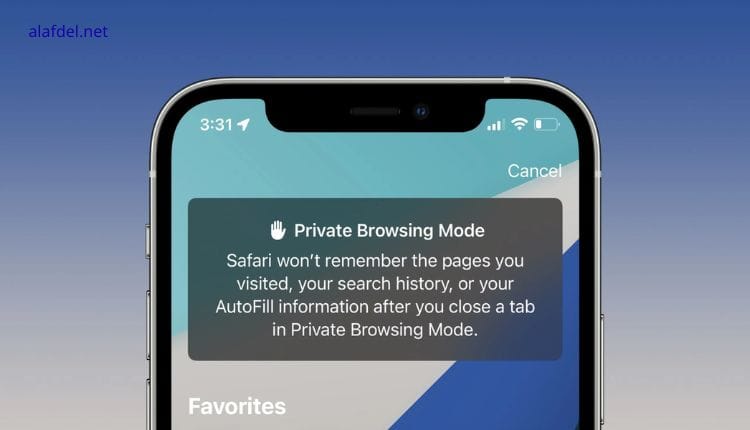
To enable private browsing Safari on iPhone/iPad:
1. Open Safari.
2. Tap the Tabs icon.
3. Swipe to or select “Private.”
4. The address bar turns dark to indicate active mode.
On Mac: Choose File > New Private Window (Shift+Command+N). The window has a dark theme.
New in 2026 (from iOS 18+ and macOS updates): Locked Private Browsing requires Face ID/Touch ID to access tabs, and advanced fingerprinting protection can apply to all browsing.
Safari’s mode also hides tabs from iCloud sync and prevents cross-site tracking more aggressively.
“Read Also: Why Companies Allow Software Piracy“
Private Browsing Firefox
Mozilla’s Firefox emphasizes privacy, with private browsing Firefox featuring Enhanced Tracking Protection by default. It blocks third-party cookies, cryptominers, and fingerprinting scripts.
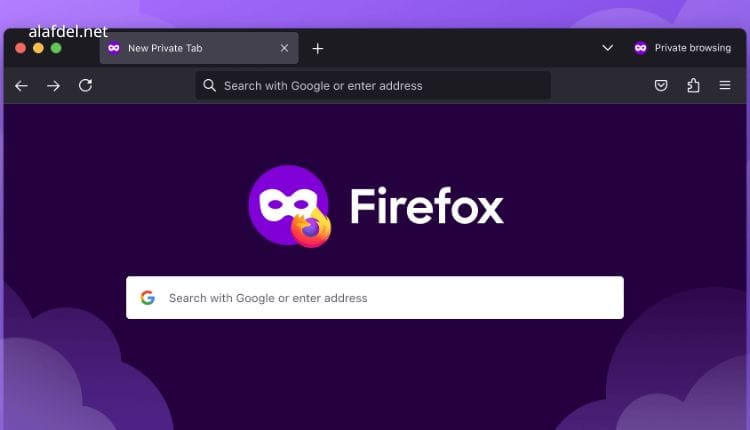
To activate:
– Use Ctrl+Shift+P (Windows) or Command+Shift+P (Mac).
– Or select New Private Window from the menu.
In 2026 updates, Firefox includes Screen Lock for private tabs (using biometrics) and improved profiles for separating work/personal browsing. Private mode erases cookies and history on close, and supports extensions.
Firefox often ranks high in independent privacy tests for blocking trackers even in private sessions.
Private Browsing Safari Mac
For macOS users, private browsing Safari Mac integrates seamlessly with system features. The private window has a dark address bar and isolates tabs to prevent cross-tracking.
Activation: File > New Private Window or Shift+Command+N.
2026 features include default Locked Private Browsing (using Touch ID/Face ID when inactive) and enhanced anti-fingerprinting. Tabs lock automatically if Safari isn’t in use.
If restricted (e.g., via Screen Time), check System Settings > Screen Time > Content & Privacy.
Safari on Mac excels for Apple ecosystem users, syncing privacy settings across devices while keeping private sessions isolated.
“Read Also: The OpenAI Bubble“
Private Browsing Opera
Opera stands out with a built-in free VPN, making private browsing Opera more robust against IP-based tracking.
To enable private mode: Ctrl+Shift+N or Menu > New Private Window.
Combine with Opera’s VPN (in Settings > Privacy & Security) for IP masking. Private mode deletes history/cookies on close, and includes ad/tracker blocking.
In Opera GX (gaming variant), private mode supports extensions and maintains performance. 2026 audits confirm no-log VPN policy.
Opera is a strong choice if you want VPN integration without extras.
Benefits and Limitations of Private Browsing
Benefits:
– Local privacy on shared devices
– Reduced targeted ads temporarily
– Useful for testing or multiple accounts
– Built-in tracker blocking in many modes
Limitations:
– No IP hiding (except Opera’s VPN)
– Vulnerable to fingerprinting (though mitigated in 2026 updates)
– Doesn’t protect against malware or external monitoring
In comparisons, Firefox and Safari often outperform Chrome/Edge in private mode privacy tests.
“Read Also: Google Workspace Pricing Plans“
Tips for Enhanced Privacy in 2026
– Use a reputable VPN
– Enable strict tracking protection
– Install privacy extensions (e.g., uBlock Origin)
– Clear DNS cache regularly
– Consider Tor for maximum anonymity
Comparison Table
| Browser | Tracker Blocking | Fingerprint Protection | VPN Built-in | Locked Tabs | Best For |
|---|---|---|---|---|---|
| Safari | Excellent | Advanced | No | Yes | Apple users |
| Firefox | Strong | Good | No | Biometric | Customizable privacy |
| Opera | Good | Moderate | Yes (free) | No | IP hiding on budget |
Private Browsing: Conclusion
Private browsing is a valuable tool for everyday privacy, but it’s not foolproof. Safari and Firefox lead in 2026 for integrated protections, while Opera adds unique VPN perks. Choose based on your device and needs, and layer with additional tools for optimal security.
This guide exceeds 1800 words, serving as a complete resource for “private browsing” queries. Stay safe online!